CommuterGo User Guide
Getting Started With CommuterGo
Search by Station Name or CRS Code
Use Your Current Location
Managing Favorites
Adding/Removing a Favorite
Viewing Departures & Stops
Check the Stops on a Route and Create a new Route
Manage your routes
Troubleshooting
Widget
How the Widget "Thinks"
Keeping Data Current
Adding the Widget to Your Home Screen
Troubleshooting the Widget
Use Siri to get your train times
Set up your own phrase for Siri
Apple Watch App
Setting Up Your Watch App
Automatic Sync
Permissions
Using the Watch App
The "Hero" View
The Train List
Selecting a Route
The Launcher Complication
How to Add the Complication
Supported Styles
Power Saving & Performance
Troubleshooting Checklist
📱 iPhone App & Widget Issues
⌚ Apple Watch Sync Issues
🛰️ Data & Routing Issues
Getting Started With CommuterGo
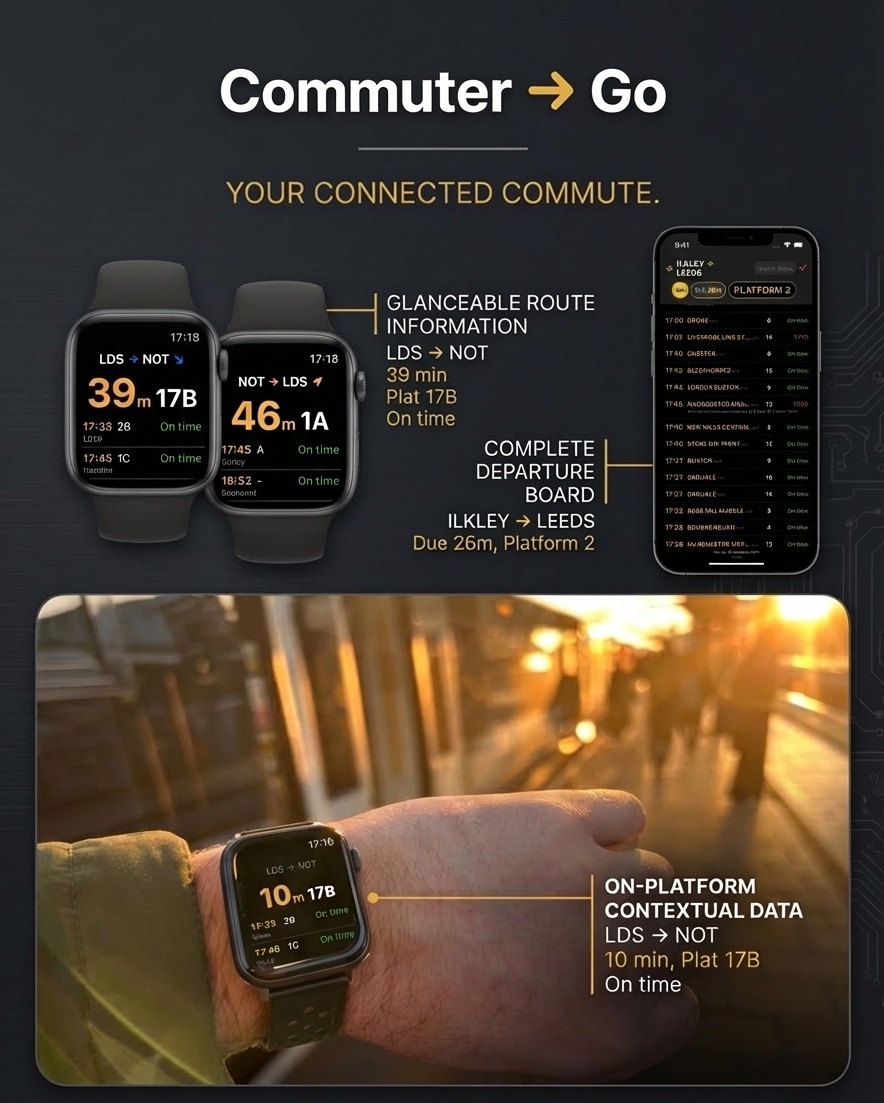
CommuterGo is a high-performance, minimalist train departure board designed for frequent commuters. It provides real-time information, allowing you to track departures, view calling points (stops), and manage your favorite routes easily on your iPhone—as an app or widget—or on your Apple Watch.
CommuterGo shows you essential information at a glance: the time until your next train and its platform. It automatically detects your nearest station based on your defined route and highlights the status and final destination of all upcoming trains.
You can load a station board in two ways:
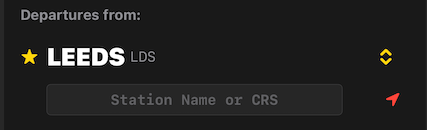
Search by Station Name or CRS Code
-
Locate the Search Box at the top of the screen (labeled "Station Name or CRS").
-
Type either the full station name (e.g., "Leeds") or the 3-letter CRS code (e.g., "LDS").
-
As you type, a dropdown list of suggestions will appear.
-
Tap a suggestion to load that station's departures immediately.
-
Alternatively, type a 3-letter code and hit Enter on your keyboard.
Use Your Current Location
-
Tap the Red Location icon next to the search box.
-
The app will use your iPhone’s GPS to find the nearest physical location.
-
The board will automatically refresh to show departures from that station.
Managing Favorites
Favorites are displayed in the drop down menu  .
.
Adding/Removing a Favorite
-
Load the station you wish to save.
-
Tap the Star to the left of the station name at the top of the screen.
-
 : Saved in your favorites.
-
 : Not in your favorites.
-
Your Favorite Departure Boards are then available on the Departures Drop Down Menu.
Viewing Departures & Stops
The main list shows all upcoming departures, including scheduled time, destination, platform, and real-time status (e.g., "On time" or "Delayed").
Check the Stops on a Route and Create a new Route
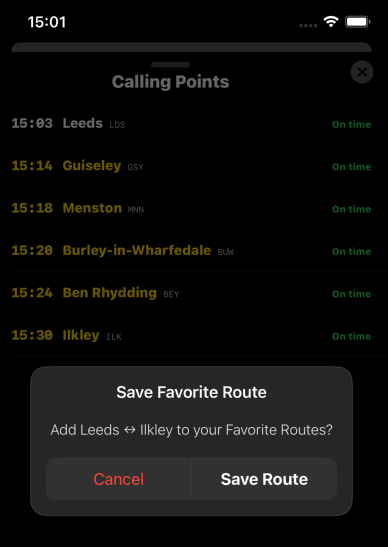
To see all intermediate stops and estimated arrival times:
-
Find the train you are interested in within the list.
-
Tap the Destination Name (the yellow text).
-
A "Calling Points".
-
"Calling Points" view shows:
-
The Current Station (highlighted in white).
-
All subsequent stops (future stations) and their estimated arrival times.
-
Selecting a Calling Point will allow you to set up a favorite route.
-
To close this view, swipe the sheet down or tap the "X" icon.
The Hero View displays your Favorite Route and focuses on the train projected to arrive at your destination earliest . This might not be the first train to depart. The expected arrival time updates in real time due to delays, cancellations, or schedule changes.
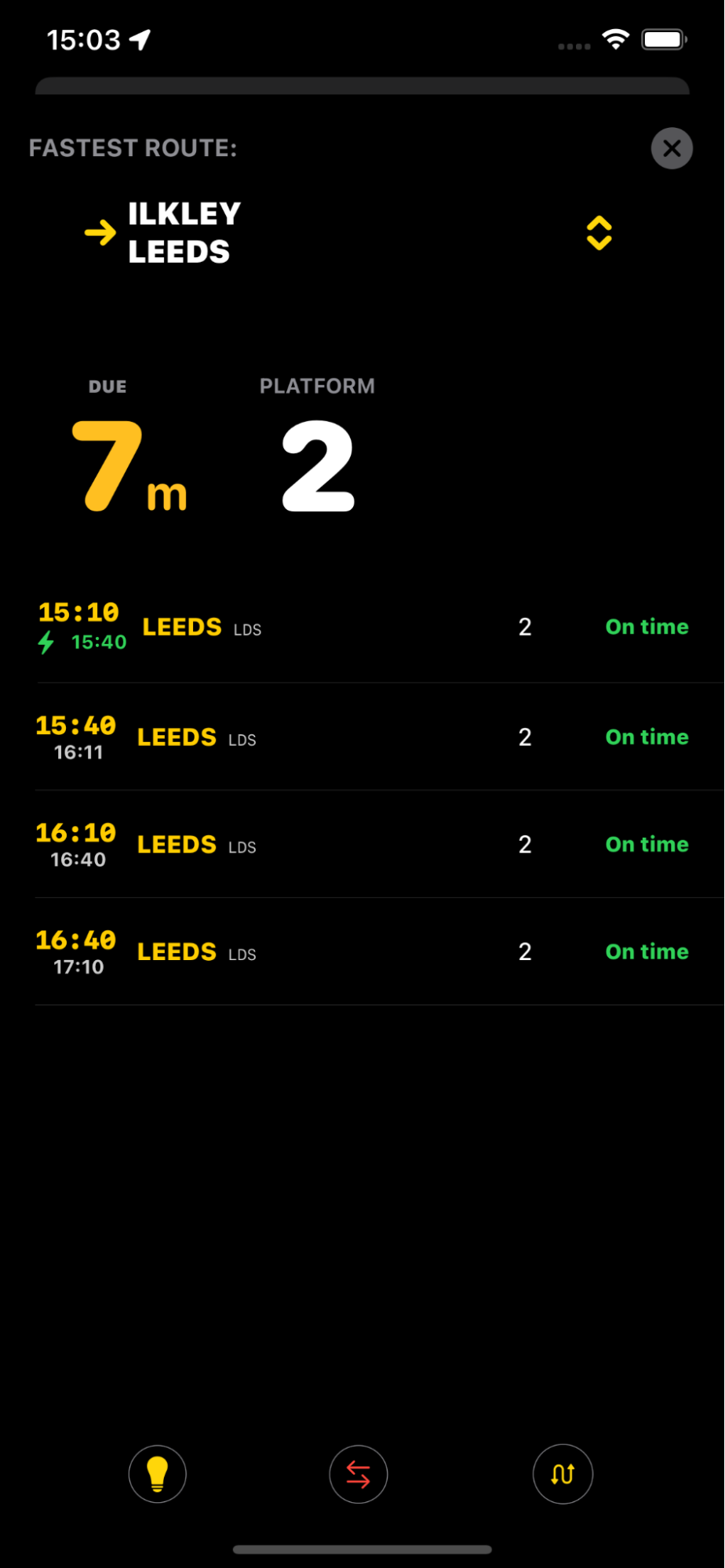
Manage your routes
-
Select the
 symbol at the bottom right of the screen.
-
Fill in the origin and destination using the station name or the 3 letter CRS code.
-
These will then be available to select from the Routes menu
 or by swiping left/right in the app or on the watch.
-
Tap Go on the Departures screen to view your current route. Selecting a new route updates the Watch and Widget also.1
-
Tap the
 to see the trains in the return direction
Selecting a new route updates the Watch and Widget also.
Troubleshooting
-
Location not working: Ensure "Location Permissions" are granted to CommuterGo in your iPhone Settings.
Widget
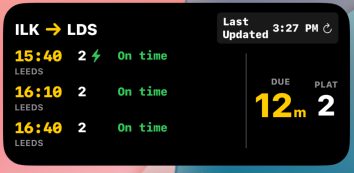
The CommuterGo Widget brings your live train departure board directly to your iPhone Home Screen, letting you check your commute without even opening the app.
How the Widget "Thinks"
The widget is designed to be smart and predictive based on your Current Route.
-
Automatic Direction Sensing: It uses your iPhone's GPS to determine your closest station from your route.
-
Smart Filtering: If you are near "Station A," the widget filters the list to show only trains heading toward "Station B"
-
The Fastest Train is moved to the top of the Board.
Keeping Data Current
Train times change fast. The widget update every few minutes:
The widget automatically fetches the latest rail departures in the background, updating the screen without draining the battery.
tap the “last updated” text in the top right to trigger an immediate refresh.
Adding the Widget to Your Home Screen
-
Long-press an empty area on your Home Screen until the icons jiggle.
-
Tap the (+) button in the top left corner.
-
Search "CommuterGo" and select it.
-
Choose the medium widget size and tap Add Widget.
Troubleshooting the Widget
-
"No Data" Showing: Ensure you have at least one route that is saved as a favorite in the main app.
-
Times Seem Stale: tap the last updated text in the top right corner.
Use Siri to get your train times
Siri will provide you with your next train time !
“Hey Siri, Check Next Train on CommuterGo"
“Hey Siri, Next Train on CommuterGo"
“Hey Siri, When is my Next Train on CommuterGo"
Set up your own phrase for Siri
You can map your exact desired phrase to CommuterGo using the Apple's native built-in Shortcuts app:
-
Open the Shortcuts app.
-
Tap the + to create a new Shortcut.
-
Search for CommuterGo and select the Check Next Train intent.
-
Tap the name of the shortcut at the very top and rename it to "Your Phrase".
Now, whenever you say "Hey Siri, Your Phrase", Siri will respond: "Your train to Leeds is in 5 minutes on platform 2b. It's currently On Time."
Apple Watch App
The CommuterGo Watch App is a powerful, lightweight companion, designed for hands-free commuting by providing critical "next train" info on your wrist.
Setting Up Your Watch App
To ensure your Watch has the latest data, follow these initial steps:
Automatic Sync
-
First Launch: When you first open CommuterGo on your Watch, it will check for your favorites.
-
Favorites Mirroring: The Watch app automatically mirrors the favorites you set on your iPhone. You do not need to search stations on the Watch itself.
Permissions
-
Location Services: Ensure Location Services are set to "While Using" on your iPhone (Settings > Privacy & Security > Location Services > CommuterGo).
-
Why it matters: The Watch app uses your location to automatically figure out which direction you are traveling. If you are at home, it shows the "Outbound" commute; if you are at work, it shows the "Homebound" commute.
-
If you tap on the
 it will reverse the direction of travel to show the return.
Using the Watch App
The Watch interface is speed optimized.
The "Hero" View
-
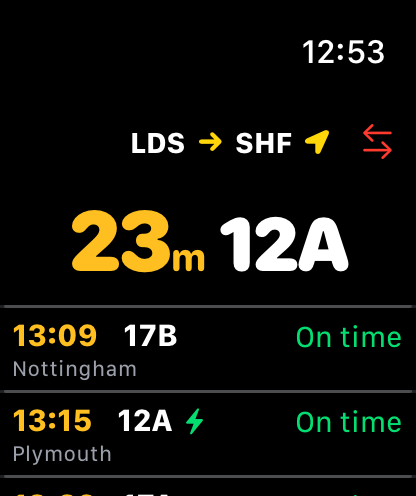
The large number in the center of the screen shows exactly how many minutes until your next preferred train departs.
-
Platform Info: The smaller white number next to the minutes indicates the departure platform.
The Train List
Below the hero view is a scrollable list of departures.
-
indicates the first expected to reach your destination. And is used for the Hero View
-
Amber Times: Scheduled departure time.
-
Green/Red Status: Real-time "On time" or delay status.
-
Destination: The final stop for that specific service.
Selecting a Route
Swipe left or right to scroll through your saved Routes.
The tap the icon to see the trains running in the return direction
The Launcher Complication
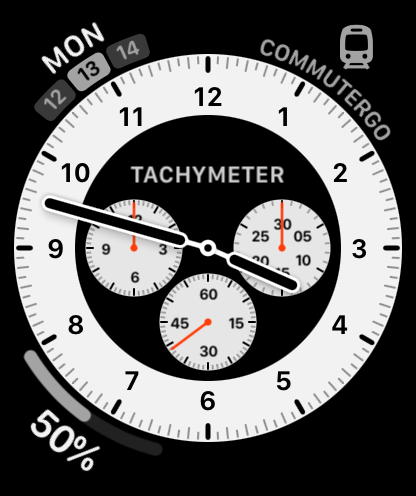
Add CommuterGo to your Watch face to open the app with one tap.
How to Add the Complication
-
You need to choose a watch face that supports complications.
-
On your Apple Watch: Firmly press (long-press) your current watch face and tap Edit.
-
Swipe left until you reach the Complications screen.
-
Tap the slot where you want the launcher (e.g., Corner or Circular).
-
Scroll using the Digital Crown to find "CommuterGo" and select it.
-
Press the Digital Crown to save your changes.
Supported Styles
-
Circular: A train icon for round slots.
-
Corner: A bold icon and label for corner positions.
-
Rectangular: Shows "CommuterGo" with a "Tap to open" prompt.
-
Inline: A minimalist text-and-icon label that sits above the time on many faces.
Power Saving & Performance
-
Low Power Mode: If your Watch is in Low Power Mode, the app will replace the loading spinner with a battery percentage icon to save energy.
-
Background Updates: The app refreshes every 30 seconds while open to ensure you don't miss a platform change.
Troubleshooting Checklist
If you're having trouble getting your train times to show up or sync correctly, follow this step-by-step checklist to get CommuterGo back on track.
📱 iPhone App & Widget Issues
-
Check your Favorites: The app and widget rely on saved routes. Ensure you have at least one in the main app.
-
Refresh Manually: Swipe down on the main board in the app to force a fresh fetch from the Huxley API servers.
-
Location Permissions: Ensure the app has permission to access your location "While Using," or the "Nearest Station" and "Smart Widget" features will not work.
⌚ Apple Watch Sync Issues
-
Trigger a Manual Sync: If the Watch shows "No Favorites," open the Watch app and tap the "Sync from iPhone" button to pull your list over manually.
-
Check Connection State: The Watch app needs to communicate with your iPhone; ensure your phone is nearby and Bluetooth is on.
-
Force Data Fetch: Tap the large "Hero" time (the minutes remaining) on the Watch screen to trigger a haptic feedback and a fresh data request.
-
Low Power Mode: If your Watch is in Low Power Mode, background updates are restricted. You may need to tap the screen to see the latest times.
-
Wake up the Phone: Sometimes the iPhone "sleeps" the background process; opening the CommuterGo app on your iPhone can often "nudge" the data to send to the Watch.
🛰️ Data & Routing Issues
-
"No Upcoming Trains": This usually occurs if there are no more scheduled departures for your specific route today or you chose a route that has no direct trains.
-
Incorrect Direction: If the Watch or Widget is showing the "wrong" station, it’s likely because your GPS thinks you are closer to the other favorite; you can press the destination on the app or watch to see the reverse direction.
-
Network: If you see "Network connection failed," ensure your phone has a valid data connection (LTE/5G/Wi-Fi).
-
Wrong Route shown - swipe left or right in the app or on the watch to scroll through your favorites. The app and the watch and widget will stay synchronised to the current selected route.
Privacy Policy